
Make a PDF
Add photos
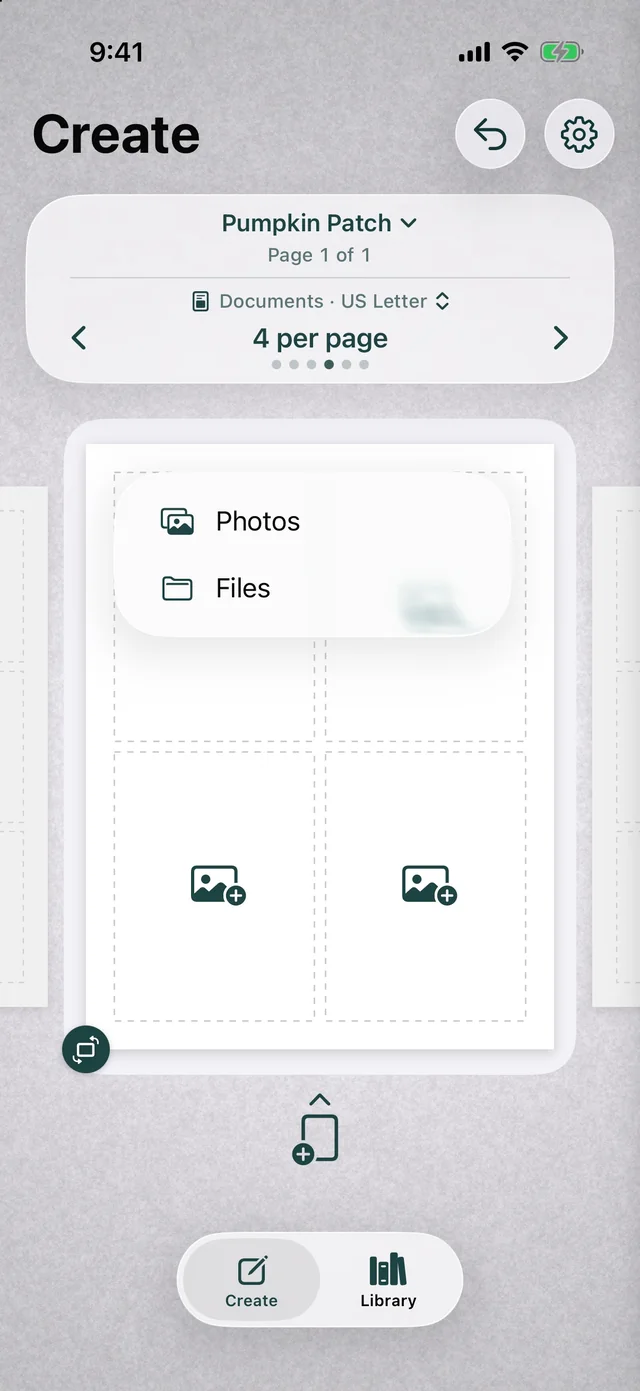
Tap Create, then tap a space on the page and choose where your photos come from: your library, Files or the camera. Photos fill the spaces in order. If there are more photos than spaces, the rest go onto new pages.
You can also send photos from Photos or another app: select them, tap Share and choose Photo Press. Make PDF Now creates the PDF without opening Photo Press and saves it to your Library, using the page size set in Settings › Share Sheet. Add to Photo Press adds the photos to the PDF you're making in the app.
Change the layout
Swipe a page left or right to change its layout. Swiping moves through every category of layouts in turn, and the dots show where you are in the current one.
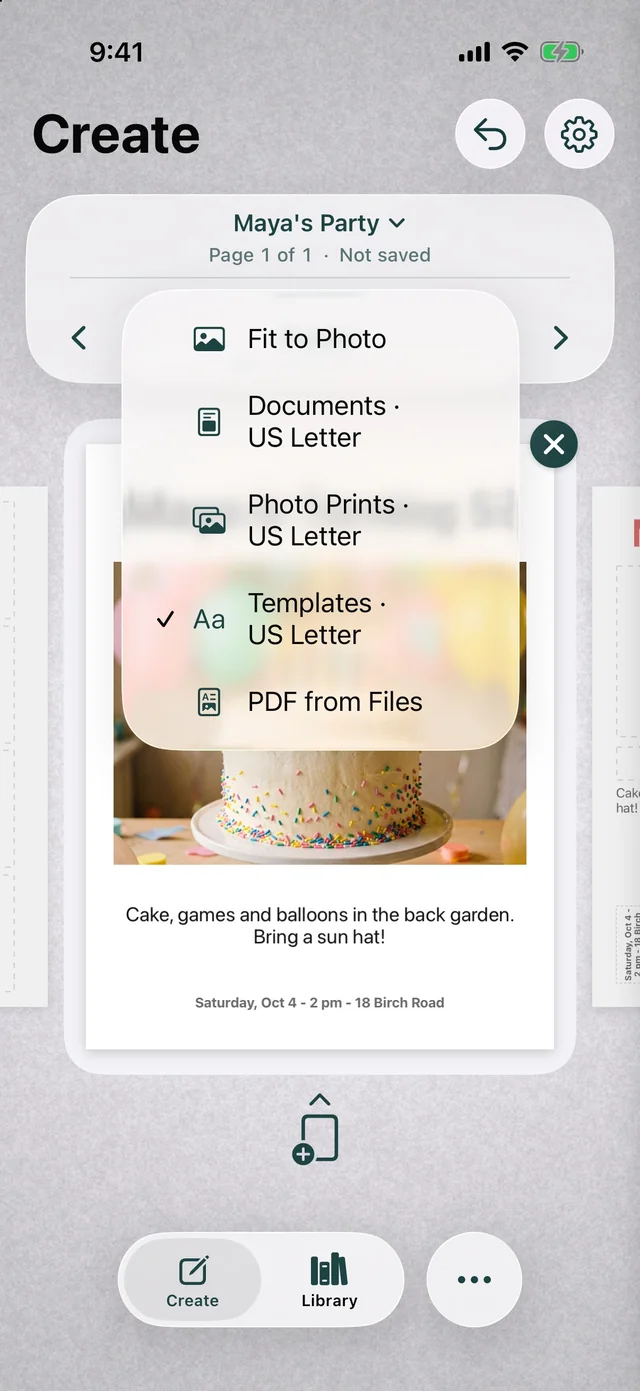
To jump straight to a category, tap the category name shown above the page and pick one:
- Fit to Photo: each page is the shape of its photo.
- Documents: one or more photos per page, or two panoramas, for notes, receipts and papers.
- Photo Prints: real print sizes, such as 8 × 10, 5 × 7, 4 × 6 and wallets.
- Templates: pages with text, such as a Tear-Off Flyer, Poster, Side by Side and Storyboard.
- PDF from Files: adds the pages of another PDF, exactly as they are.
Documents, Photo Prints and Templates each come in US Letter and A4. Tap the corner button to turn a page to landscape.
Add text
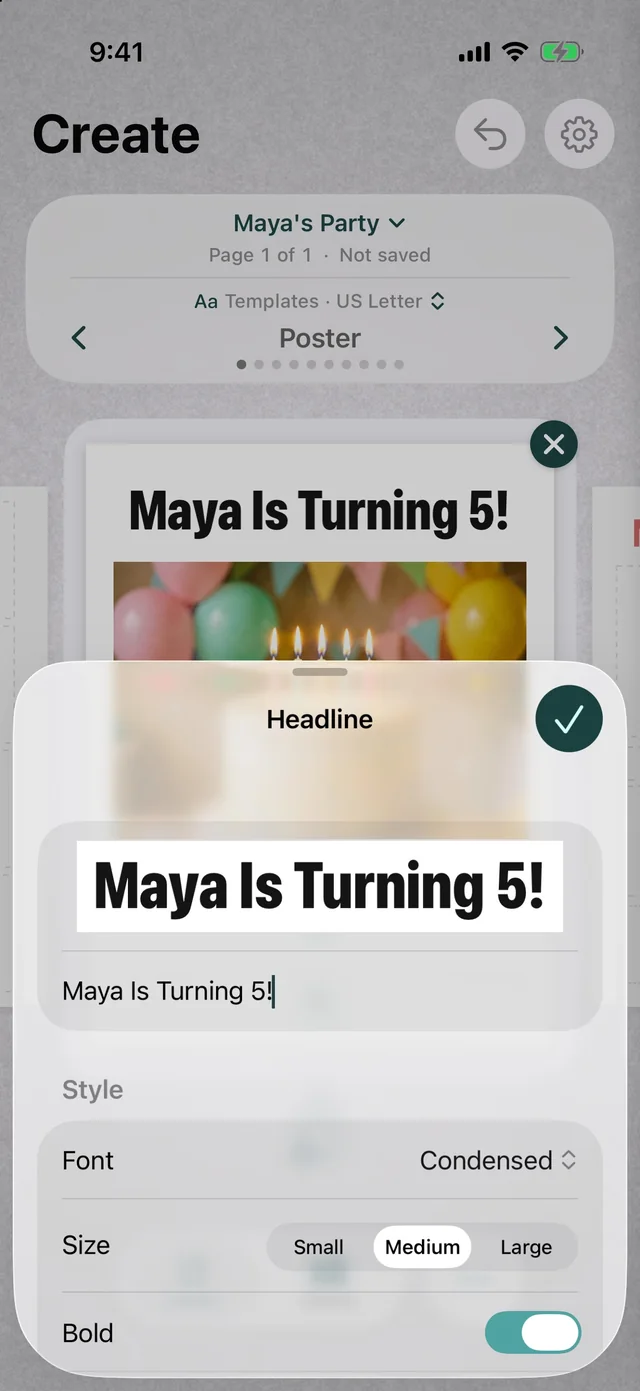
Tap a text box on a template. Type, then choose its font, size, bold and color. The preview shows it as it prints.
Text that doesn't fit gets smaller. If it still won't fit, the box says so.
Pages
- Swipe up on the last page and a new one appears below it. Swipe up and down to move between pages.
- Tap ✕ at a page's corner to remove it.
- Undo is at the top. You can also shake your iPhone.
Move photos
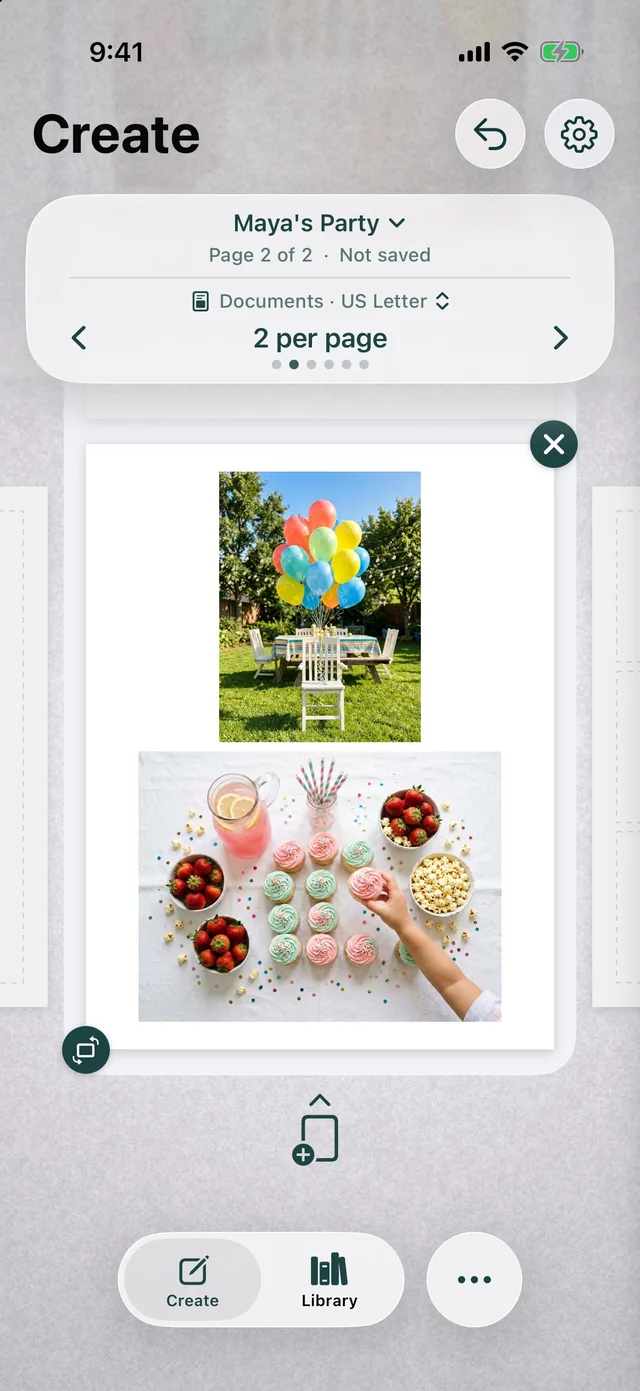
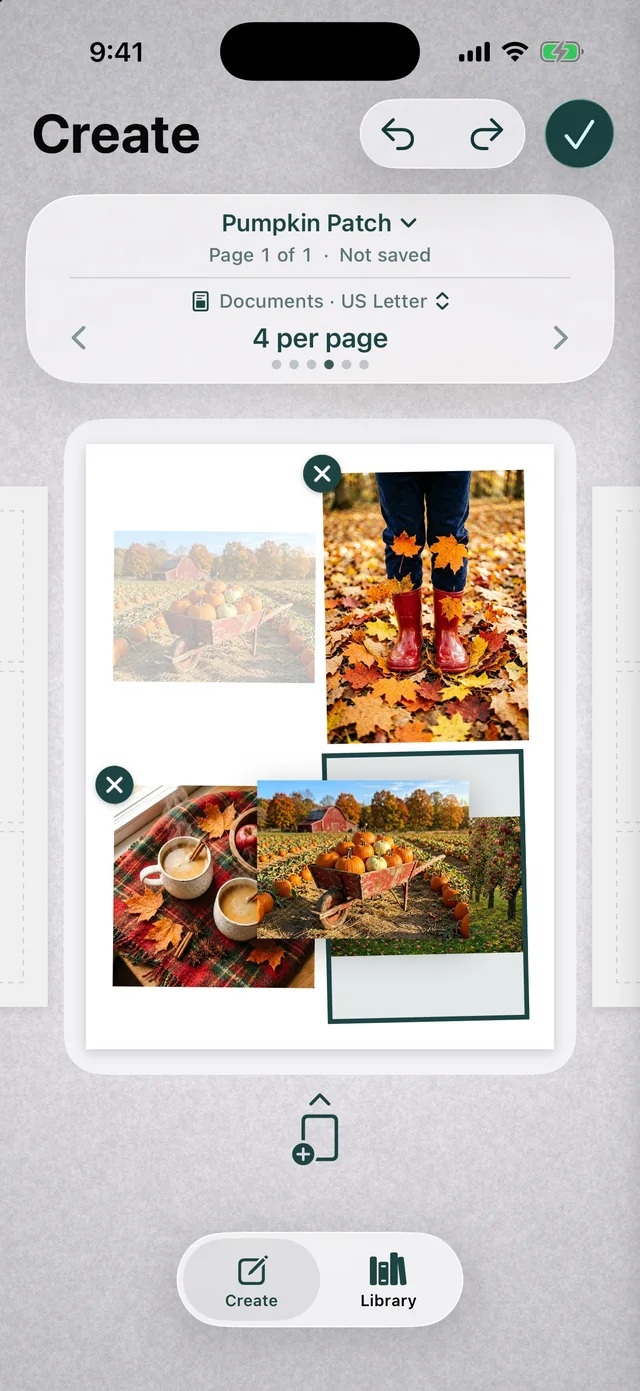
Touch and hold a photo until the photos wiggle. Drag it to any space, even on another page: hold it near the top or bottom to turn pages. Tap ✕ on a photo to remove it, and tap ✓ at the top when you're done.
Rearrange pages
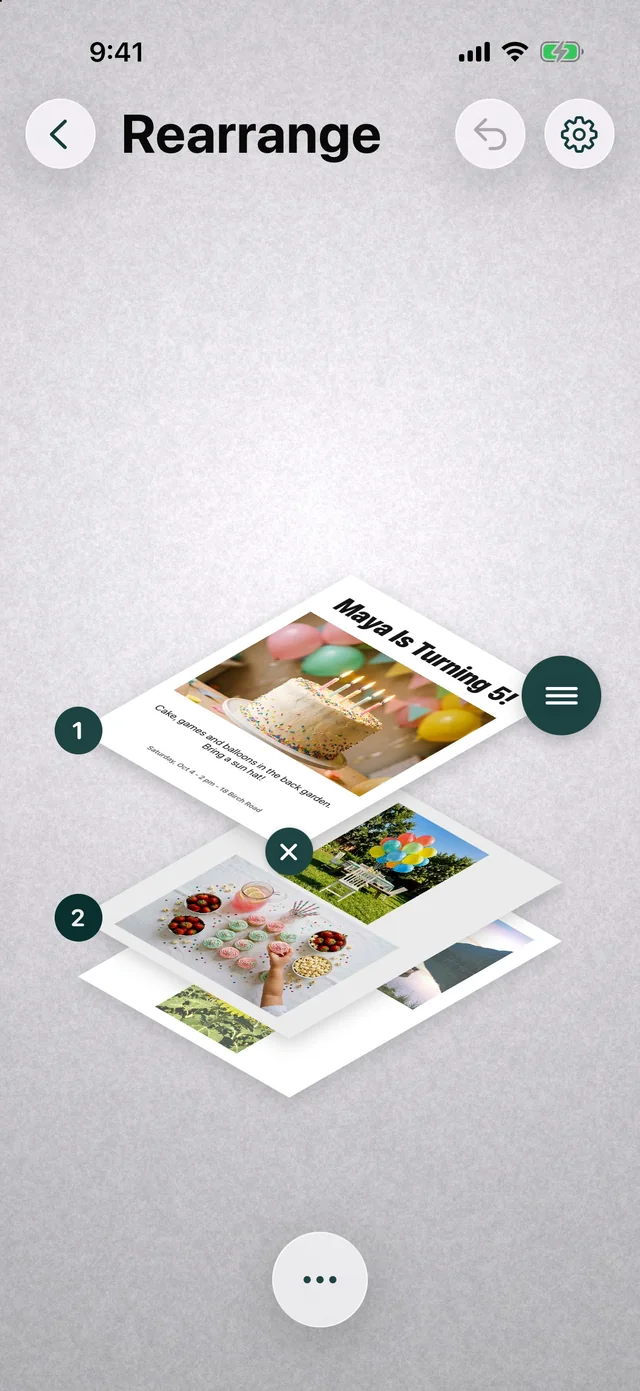
In Create, or in Edit for a PDF in your Library, tap ⋯ › Rearrange to see your pages as a stack, and flick to move through it. Drag a page by its ≡ handle to move it, or tap ✕ to remove it. Tap Back when you're done.
Change a PDF
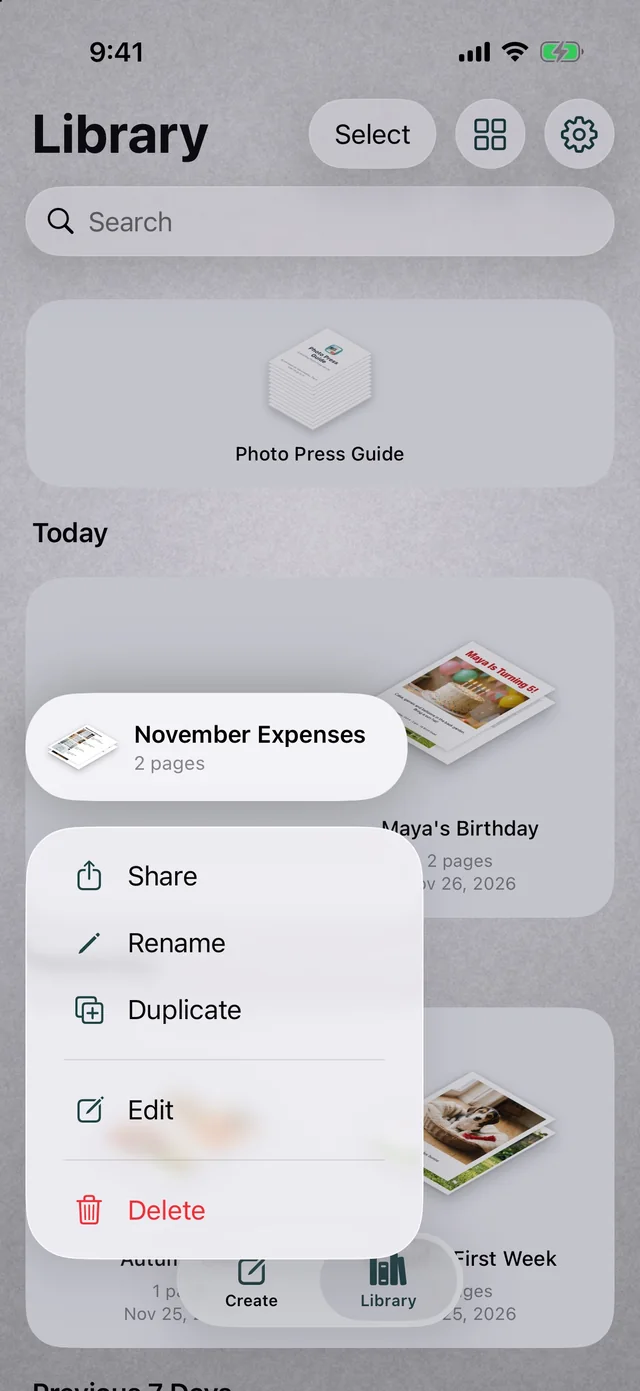
Tap a PDF in the Library to open it. Touch and hold one to share, rename, duplicate, edit or delete it. Select works on several at once.
To change a PDF, open it and tap ⋯ › Edit, or touch and hold it in the Library and choose Edit. A PDF made in Photo Press opens with its photos and layouts. Once you change something, Not saved appears under its name. Save updates the PDF; Save as Copy keeps the original.
A PDF made in another app, or changed in one, opens with each page exactly as it is. You can add, remove and rearrange its pages, but not change what's on them.
Save and share
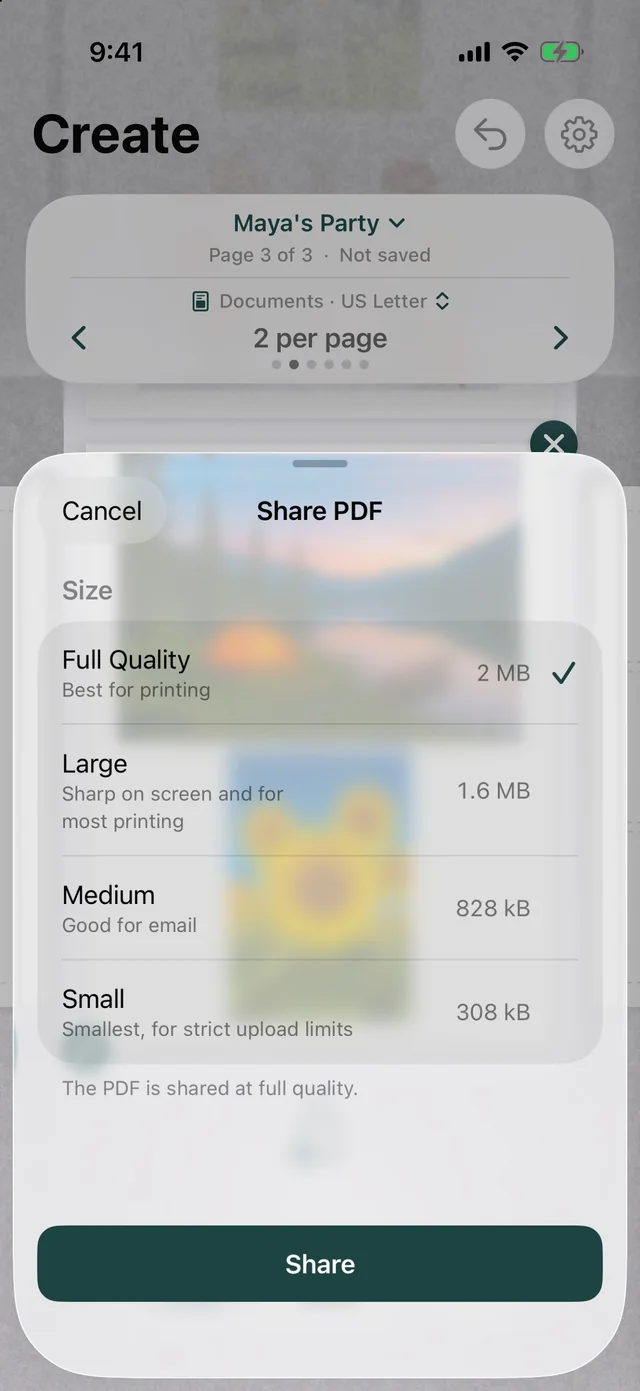
Tap ⋯ at the bottom right. Save keeps the PDF in your Library. Share sends it, prints it or saves it to Files. Sharing needs Get Photo Press.
Choose a size, then tap Share:
- Full Quality: best for printing.
- Large: sharp on screen and for most printing.
- Medium: good for email.
- Small: smallest, for strict upload limits.
Smaller copies turn each page into an image, so their text can't be selected or searched. Your PDF in the Library stays at full quality.
Settings
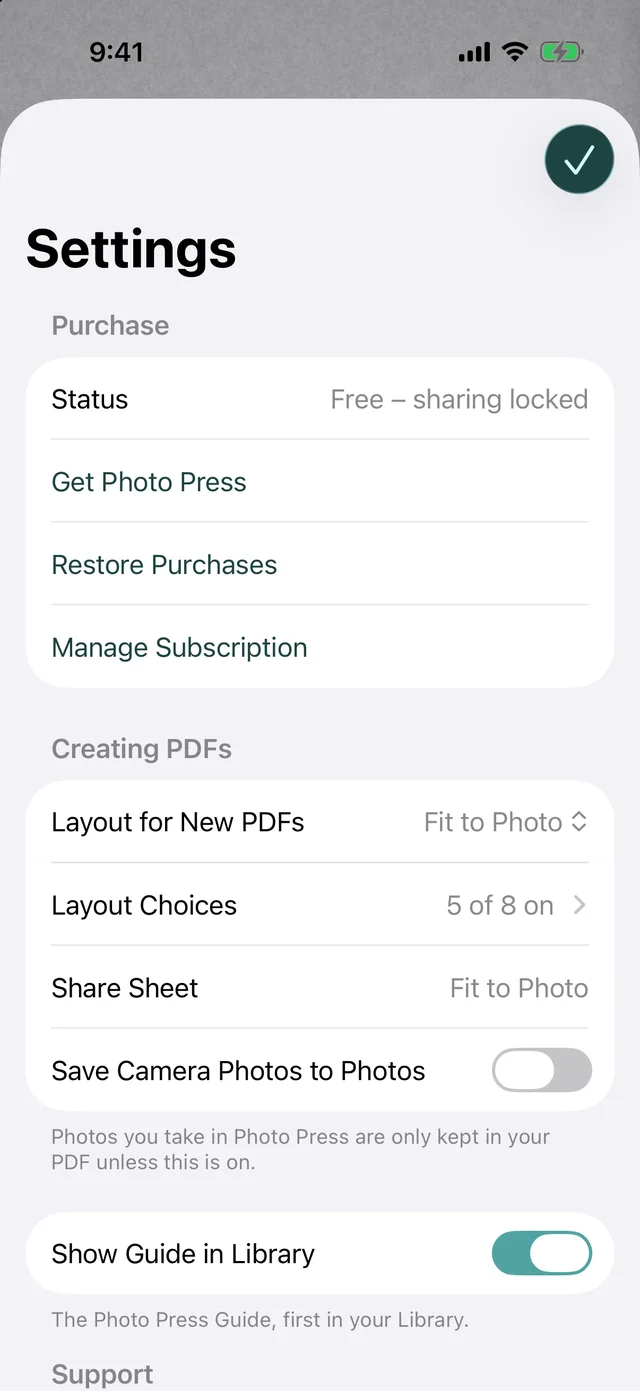
Tap the gear at the top of the Library or Create.
- Layout for New PDFs: what a blank page starts with.
- Layout Choices: which categories of layouts you swipe through, and in what order.
- Share Sheet: the page size Make PDF Now uses for photos shared from other apps.
- Save Camera Photos to Photos: also keeps the photos you take in your photo library. When it's off, they're kept only in your PDF.
- Show Guide in Library: shows the Photo Press Guide first in your Library.
Purchases
Making, editing and keeping PDFs is free, with every layout and template. Get Photo Press adds sharing, saving to Files and printing. You can choose a weekly or yearly subscription, or Lifetime, which you pay for once and keep.
Bought it before, or got a new iPhone?
Open Settings in Photo Press and tap Restore Purchases. Make sure you're signed in to the App Store with the same Apple Account you bought it with.
Manage or cancel a subscription
In Photo Press, open Settings and tap Manage Subscription. Or, on your iPhone, open Settings › your name › Subscriptions. Subscriptions renew automatically until you cancel, and you can keep sharing, saving to Files and printing until the end of the period you've paid for.
Waiting for approval
If Ask to Buy is on for your Apple Account, the purchase waits for a family organizer to approve it. Sharing, saving to Files and printing unlock once it's approved.
Refunds
Purchases are made through Apple, so refunds are too. Request one at reportaproblem.apple.com.
Fixing problems
"In-app Purchases are off on this iPhone"
In-app purchases can be allowed in Settings › Screen Time › Content & Privacy Restrictions. If a parent or guardian manages Screen Time on your iPhone, ask them to allow it.
"You're offline" or "The App Store isn't responding"
Buying and restoring need a connection to the App Store. Your PDFs are saved, and everything else in Photo Press works offline. If a purchase didn't go through, you weren't charged. Try again in a moment.
"Photo Press isn't allowed to add photos"
This shows if Save Camera Photos to Photos is on but Photo Press can't add to your library. Open Settings › Privacy & Security › Photos › Photo Press and allow it to add photos.
The camera won't open
Open Settings › Privacy & Security › Camera and turn on Photo Press.
"Couldn't Create a Smaller Copy"
The PDF may be damaged or protected by a password. You can still share it at full quality. For a PDF with a password, open it and unlock it first, then share a smaller copy.
Photo Press isn't in the share sheet
In the share sheet, scroll the row of apps to the end, tap More, then tap Edit and add Photo Press to Favorites.
Still need help?
We read every message. Include your iPhone model and iOS version, which are in Settings › General › About, and a screenshot if it helps.
support@getphotopress.comYou can also open Settings in Photo Press and tap Contact Support.