
Photo Press app icon

Your photos, on real pages.

Photo Press lays out your photos and shows every page as it will print. Expense receipts, flyers, photo prints and before-and-afters, made into a PDF right on your iPhone.

Download on the App Store

Free to make, edit and keep PDFs. Get Photo Press to add sharing, saving to Files and printing.

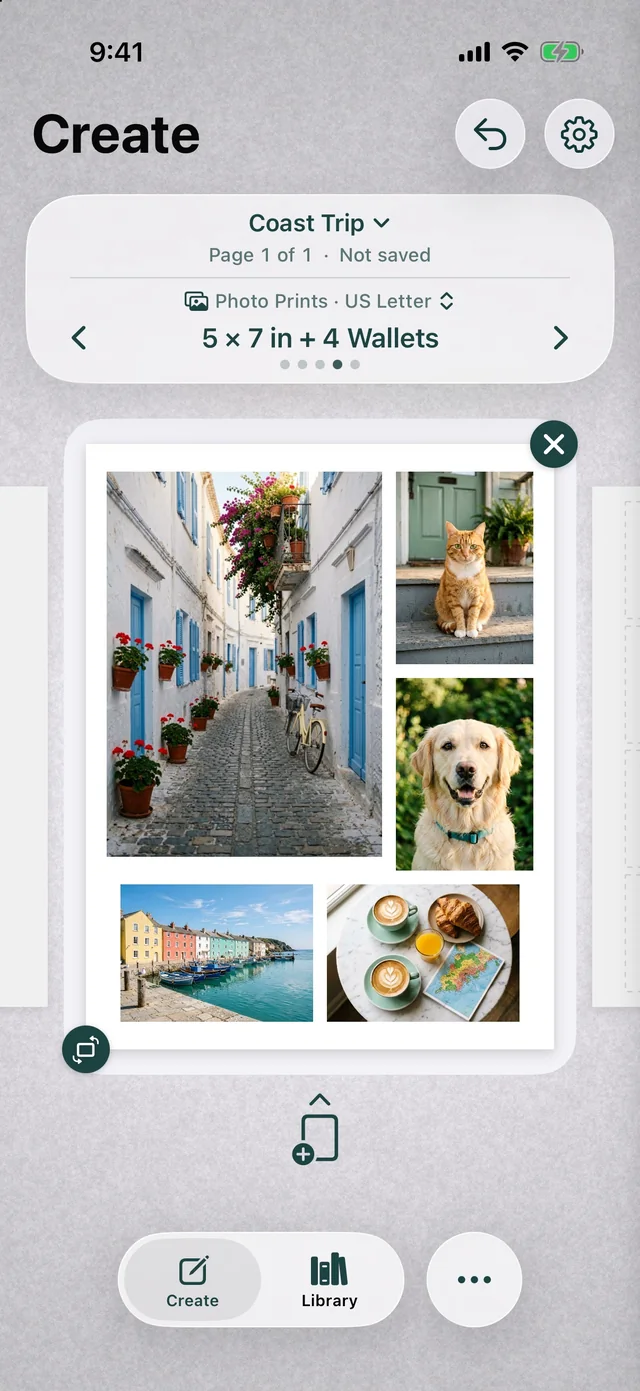
A Coast Trip page of photo prints in Photo Press: a 5 × 7 of a cobbled lane with four wallet prints of a cat, a dog, a harbor and a café table

What people make with Photo Press.

Real pages made in the app, from a few photos each.

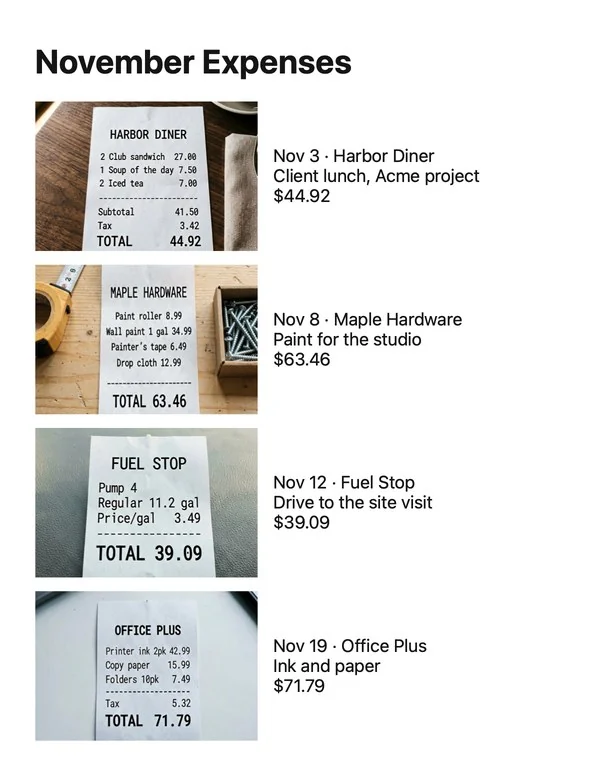
Expense receipts, labeled and ready to submit

Photograph each receipt and type what it was for beside it: the date, the store, the project and the amount. Send your manager or accountant one tidy PDF instead of a pile of photos.

Layouts Captioned Photo List · Photo and Notes
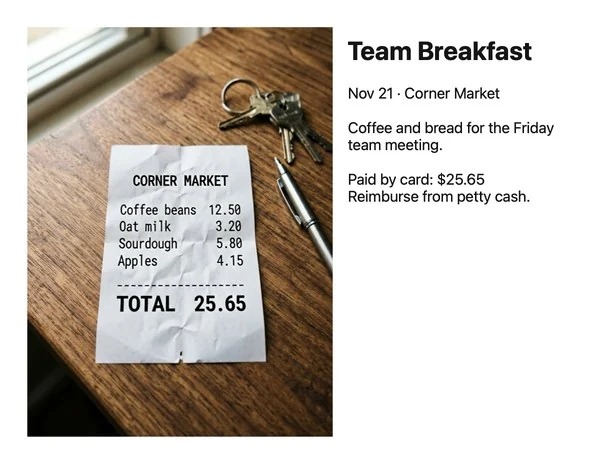
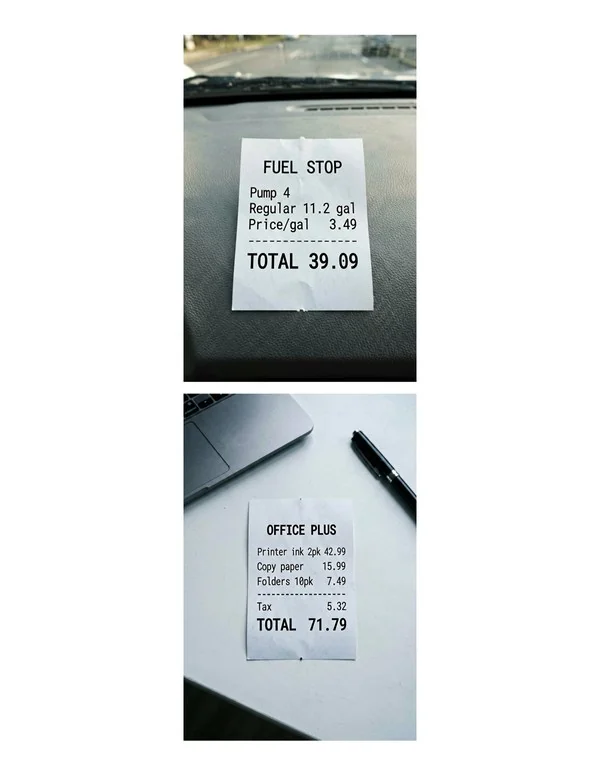
A Team Breakfast page: one receipt with notes on what it was for A page with two receipts A November Expenses page: four receipts, each labeled with its date, store, purpose and amount
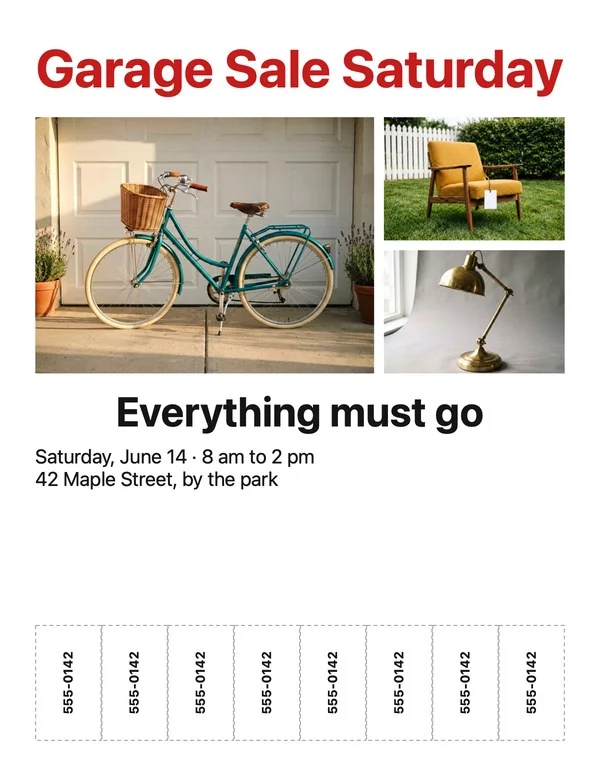
A Garage Sale Saturday flyer with photos and tear-off phone number tabs

Yard sale flyers

A headline, your best photos and tear-off tabs with your number.

Layout Tear-Off Flyer
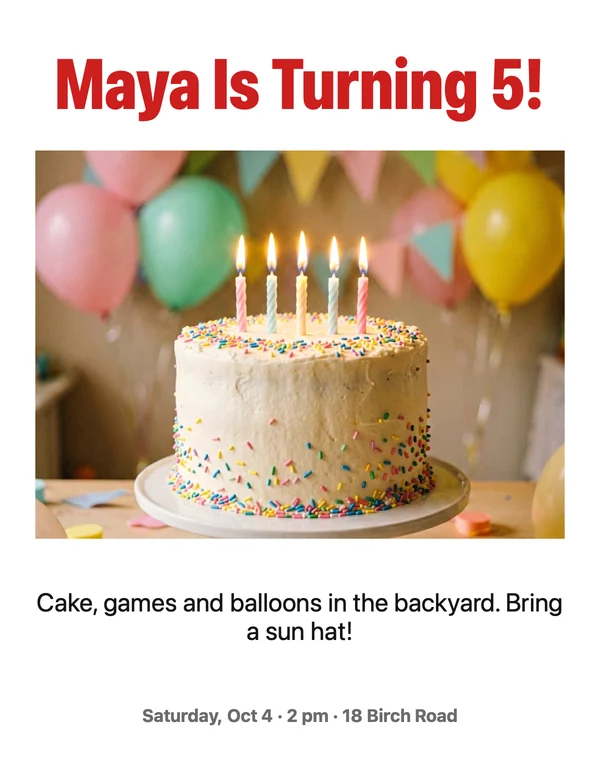
A birthday party poster with a photo of a cake

Invitations and posters

One big photo and big, clear words, for the fridge or the bulletin board.

Layout Poster
A page of two 4 × 6 prints: a lakeside tent and a campfire

Photo prints

8 × 10, 5 × 7, 4 × 6 and wallets, laid out at their true print sizes.

Layout Photo Prints
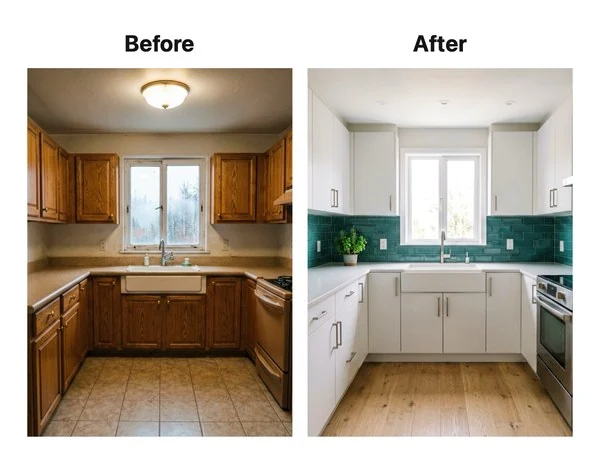
A before-and-after page of a kitchen remodel

Before and after

Two photos side by side for a remodel, a repair or an insurance claim.

Layout Side by Side
A For Rent poster: a photo of a blue craftsman house with its rent, description and phone number

Rental listings

A big photo of the place, what makes it special and how to get in touch.

Layout Poster
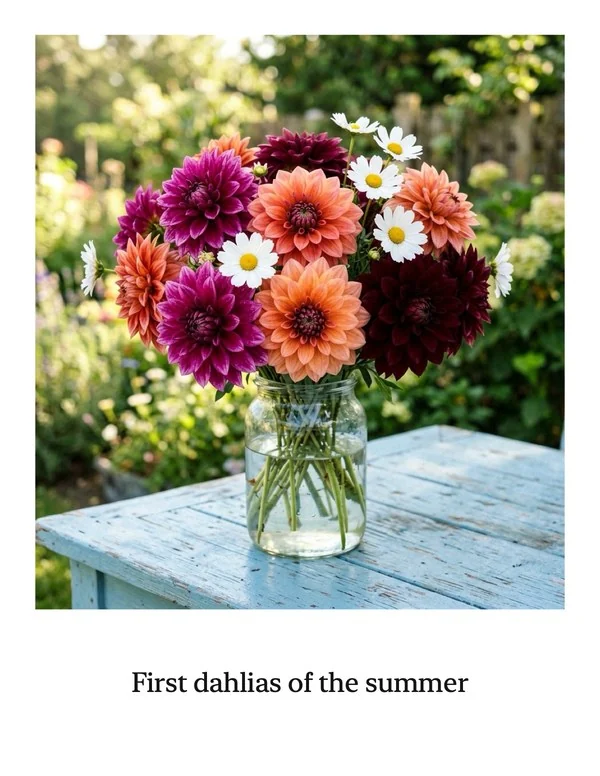
A page with a photo of dahlias and a caption

Journals and keepsakes

A photo with a caption or notes, for the family binder or a scrapbook.

Layout Photo with Caption

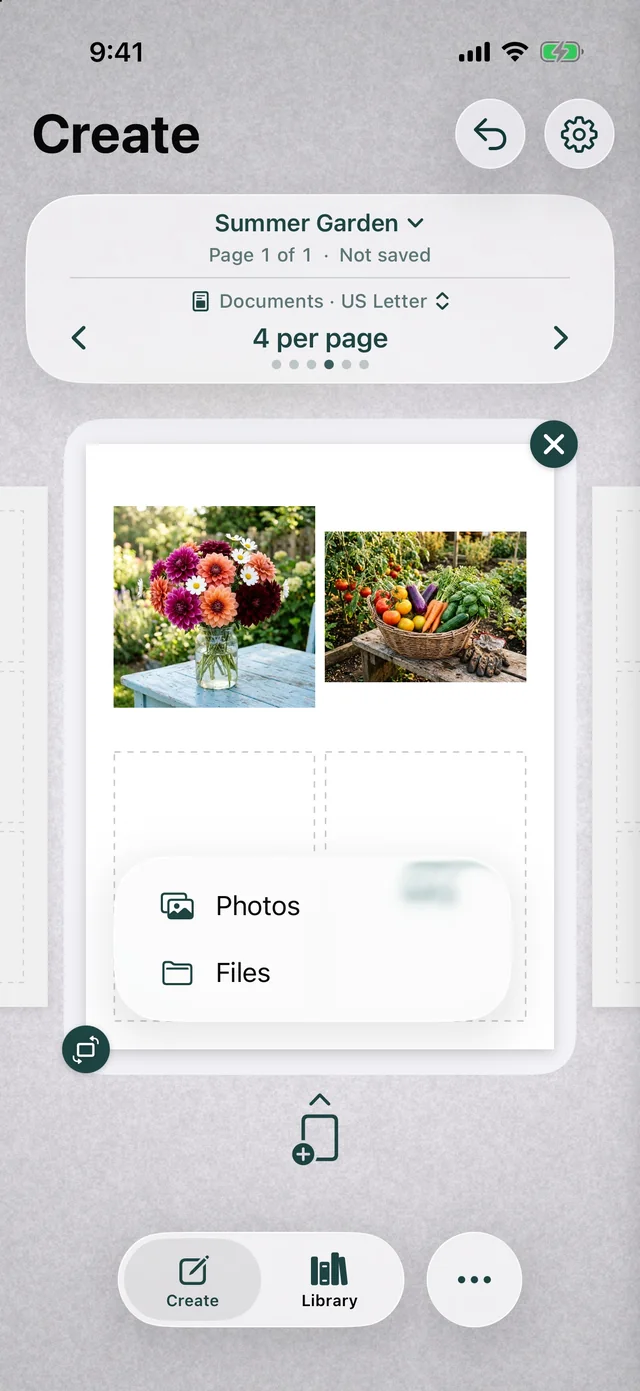
Tap a space to add photos.

Every layout has spaces waiting for photos. Tap one to add photos from your library, Files or the camera, and they fill the spaces in order.

On a template, tap a text box to type a title, caption or price, and see it as it will print.

A garden page with two photos in place, adding photos to the next empty space

Swipe for a new layout.

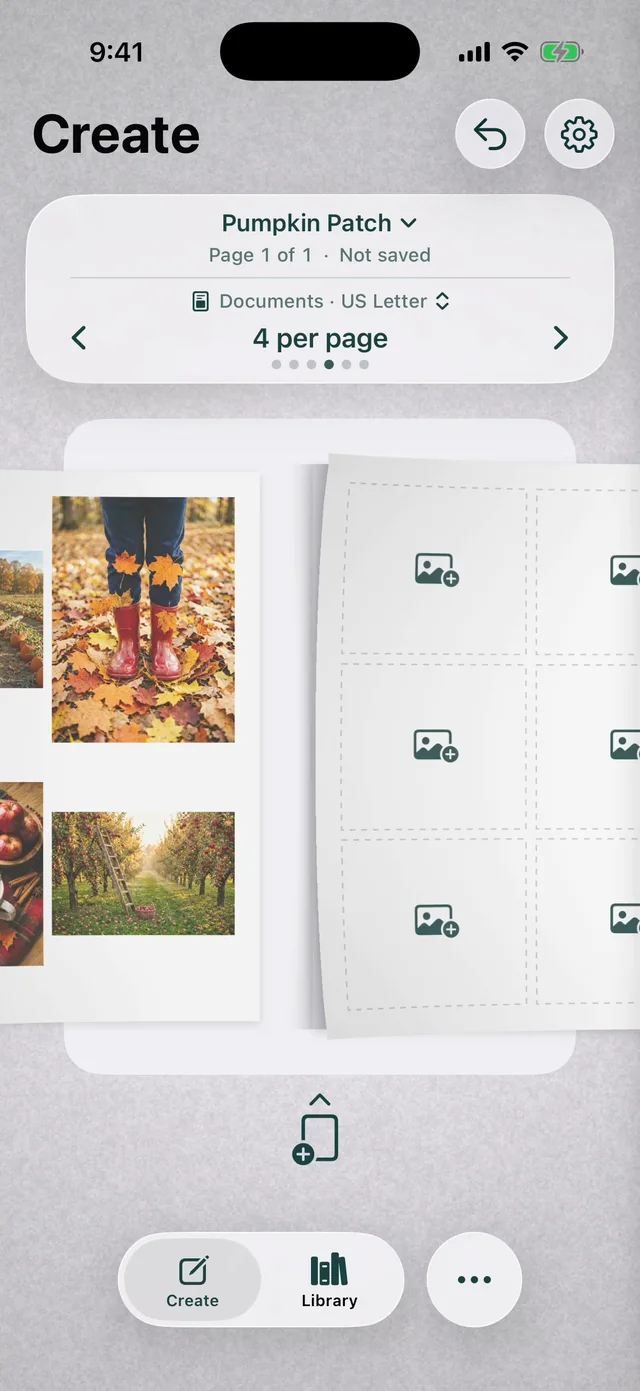
Swipe a page left or right to flip through its layouts: one photo, several, or a template with text. Your photos drop into each layout as you swipe. If a layout has fewer spaces than you have photos, the rest go onto a new page after it.

Layouts are sorted into categories, such as Documents, Photo Prints and Templates, and swiping moves through all of them. To jump straight to a category, tap the category name shown above the page and pick one. The corner button turns a page to landscape.

An autumn page of four photos sliding away as the next layout curls in from the right

Swipe up for a new page.

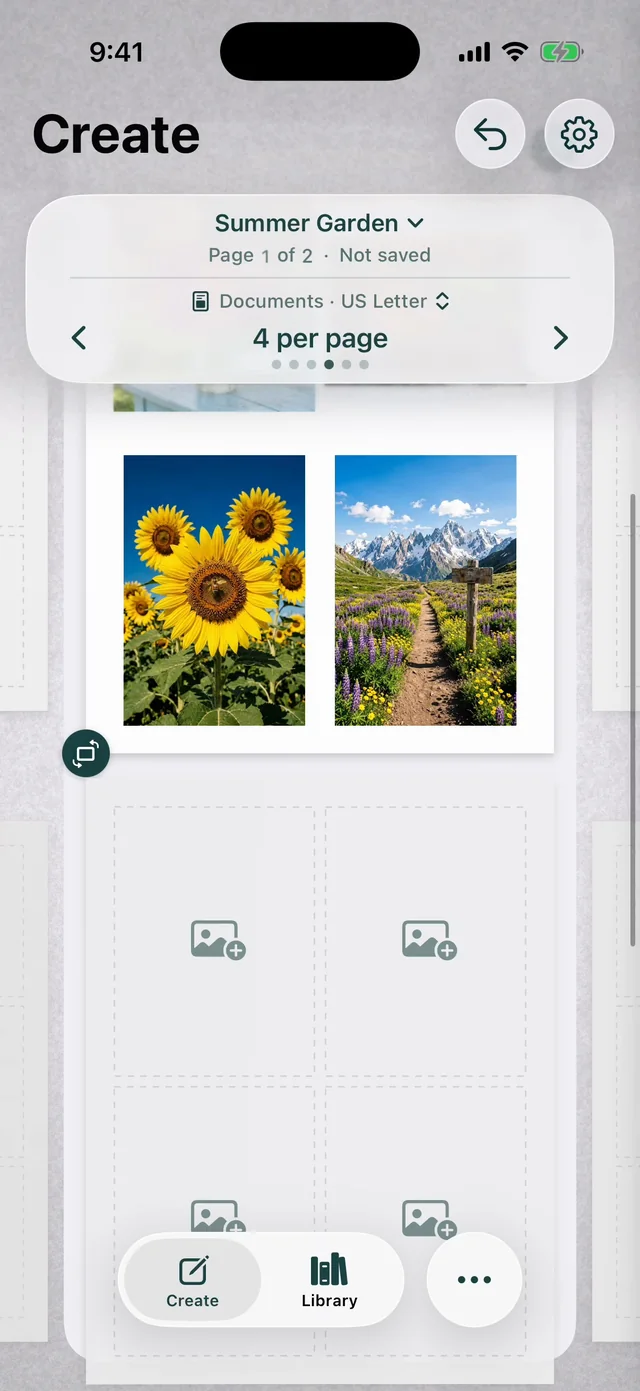
Swipe up on the last page and a new one appears below it. Swipe up and down to move between pages, and give each page its own layout.

A full garden page with a new blank page rising in below it

Every layout, by category

Documents, Photo Prints and Templates each come in US Letter and A4.

Photo Press layouts by category
CategoryLayoutsGood for
Fit to Photo One photo per page, each page the shape of its photo Sending photos as pages the size of the photos themselves
DocumentsUS Letter · A4
  • 1, 2, 3, 4 or 6 per page
  • 2 Panoramas
Receipts, notes, forms and contact sheets
Photo PrintsUS Letter · A4
US Letter
  • 8 × 10 in
  • 5 × 7 in ×2
  • 4 × 6 in ×2
  • 5 × 7 in + 4 Wallets
  • 8 Wallets
A4
  • 18 × 24 cm
  • 13 × 18 cm ×2
  • 10 × 15 cm ×2
  • 13 × 18 cm + 4 small
  • 8 small (6 × 9 cm)
Real print sizes, to print at home and cut out
TemplatesUS Letter · A4
  • Poster
  • Tear-Off Flyer
  • Photo with Caption
  • Photo with Caption Above
  • Captioned Photo List
  • Photo List, Captions Left
  • Wide Photo with Caption
  • Photo and Notes
  • Side by Side
  • Storyboard
Expense receipts, flyers, posters, listings, before-and-afters, recipes and step-by-steps
PDF from Files The pages of any PDF, exactly as they are Adding a form or document to your photos

Change it later, as easily as you made it.

Open a PDF in the Library and tap ⋯ › Edit. A PDF made in Photo Press opens with its photos, layouts and text, so you can swap a layout, add or move photos, or fix a typo.

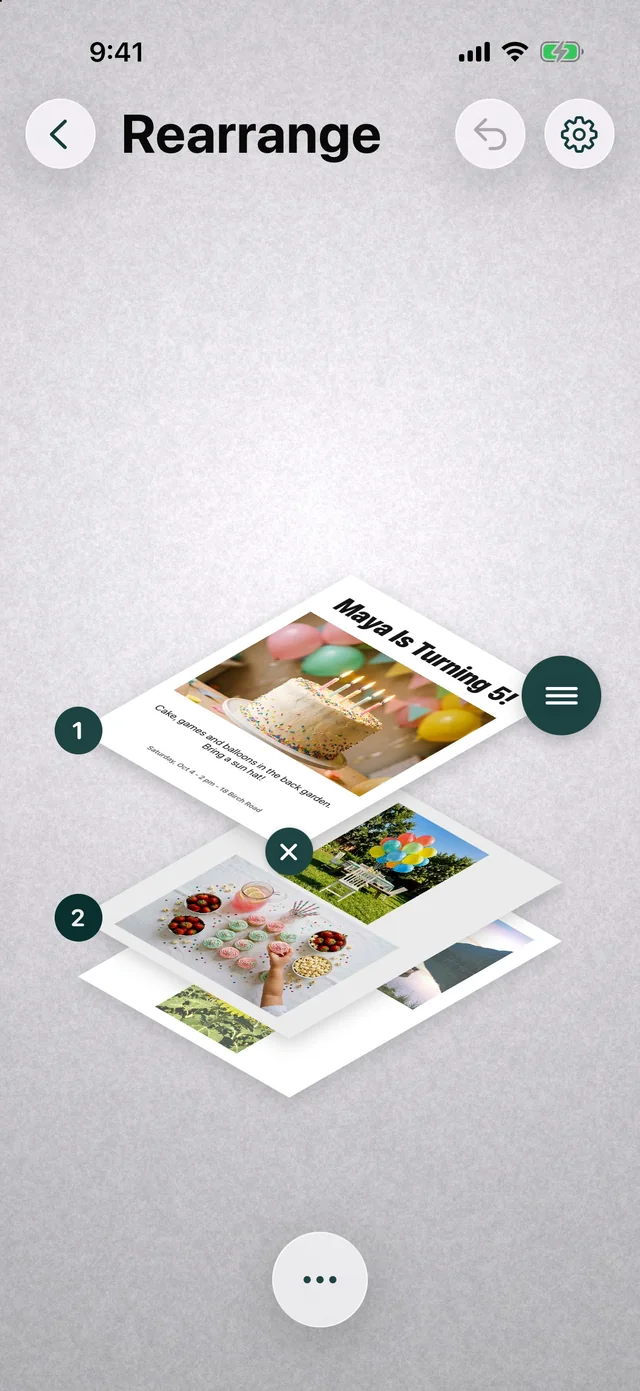
To change the order, tap ⋯ › Rearrange. Your pages appear as a stack: drag a page by its ≡ handle to move it, or tap ✕ to remove it.

When you're done, Save updates the PDF, or Save as Copy keeps the original as it was.

Rearrange in Edit: a birthday PDF's pages as a stack, numbered, with a handle to drag

Send it at the right size.

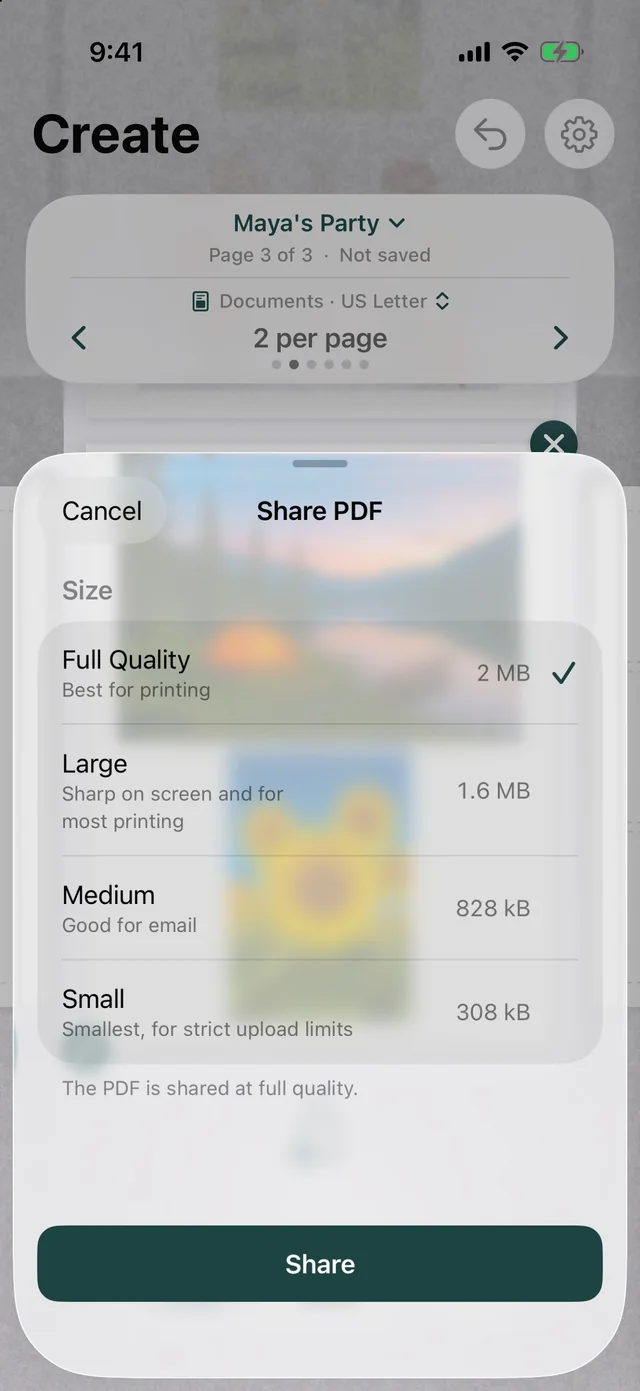
Tap ⋯ › Share to send your PDF, print it or save it to Files. Pick full quality for printing, or a smaller copy for email and upload limits. Each choice shows how big the file will be, so you know it will fit.

Full QualityBest for printing
LargeSharp on screen and for most printing
MediumGood for email
SmallSmallest, for strict upload limits

Your PDF in the Library always stays at full quality. Smaller copies turn each page into an image, so their text can't be selected or searched.

The Share PDF sheet with Full Quality, Large, Medium and Small sizes

No uploads, no account, no tracking.

Photo Press collects nothing about you, and shows no ads.

  • Your PDFs stay on your iPhoneThey're made and kept there, and leave only when you share them, print them or save them to Files.
  • Only the photos you choosePhoto Press sees the photos you pick, and can't browse the rest of your library.
  • No location in your PDFsPhotos go onto the page without the details stored inside them, such as where they were taken and which camera took them.
  • Nothing sent over the internetMake, edit and save PDFs with no connection at all. Only buying needs the App Store.
Read the full privacy policy

Free to create. Get Photo Press to share.

Make, edit and keep as many PDFs as you like, free.

Free

  • Every layout and template
  • Photos from your library, Files or the camera
  • Edit, rearrange and save to your Library

Get Photo Press

  • Everything in Free
  • Share your PDFs, save them to Files and print them
  • Smaller copies for email and upload limits

Choose weekly or yearly, or Lifetime, which you pay for once and keep. Prices are shown in the app in your currency. Subscriptions renew automatically until canceled. Cancel any time with Manage Subscription in Photo Press Settings, or in your iPhone's Settings.

Download on the App Store

Questions people ask

Does it do US Letter and A4?

Yes. Documents, Photo Prints and Templates come in both, and Photo Prints use each paper's own print sizes: inches for US Letter, centimeters for A4.

Can I add pages from another PDF?

Yes. Choose PDF from Files to add the pages of any PDF, drawn exactly as they are, alongside your photos.

Can I send photos to it from other apps?

Yes. Select photos in Photos or another app, tap Share and choose Photo Press. Choose Make PDF Now to make it right there, or Add to Photo Press to keep working on it in the app. Settings › Share Sheet sets the page size it uses.

Can I print from my iPhone?

Yes. Tap ⋯ › Share, choose a size, then choose Print to print on any AirPrint printer.

What happens to my PDFs if my subscription ends?

They stay in your Library, and you can still open, edit and make PDFs. Sharing, saving to Files and printing need Get Photo Press again.

I bought it before. How do I get it back?

Open Settings in Photo Press and tap Restore Purchases, signed in with the same Apple Account you bought it with.

Which iPhones does it work on?

Any iPhone with iOS 17 or later.

Make your first page.

Free to download for iPhone.

Download on the App Store